Recovering a lost Web Admin password on a ZTE F8748
Disclaimer — authorised use only
This write-up and any related tooling are intended only for devices you own, or for which you have explicit written permission to administer and test.
Do not use this against someone else’s router, a neighbour’s CPE, a workplace network, or any equipment you are not allowed to touch. Unauthorized access to computer systems is illegal.
There is no warranty. If something breaks, settings disappear, connectivity drops, or you lock yourself out worse than before — that risk is yours. Authors and distributors are not responsible for damage, data loss, service interruption, ISP complaints, or any other consequence of misuse or even of careful authorized use.
If you are not 100% sure you are allowed to do this on the device in front of you, stop here.
Disclaimer 2 — AI was used to write this post and create the app/GUI, because I have not time, patience or the required skill to debug this in a timely manner. AVs may flag the executables. RUN AT YOUR OWN RISK.
Why this even comes up
A lot of home fibre setups ship an all-in-one box from the ISP: ONT + Wi‑Fi router in one plastic shell. On DIGI-style installs, that box is often a Chinese-made ZTE F8748.
The Web UI usually has a limited “user” account that is fine for day-to-day Wi‑Fi tweaks… and a fuller administrator account that can actually change the interesting stuff. Plenty of people never get (or later lose) that admin password. Factory stickers, ISP defaults, a relative who “fixed the Wi‑Fi once,” a forgotten change years ago... it happens.
What makes this painful is not only “I forgot a password.” It’s that many of these boxes sit on the same old firmware for a long time. Manufacturers and ISPs often do not push meaningful updates once the device is out in the field. The result is a generation of CPE that keeps shipping with known weak spots, locked-down UIs, and little help for legitimate owners who just want control of their own hardware.
This post is not a vulnerability cookbook. It’s a high-level “we hit this problem, here’s the shape of the solution, here’s a small app that packages the boring parts.”
Test device
| Vendor / model | ZTE F8748 |
| Software / firmware | V3.0.10P2N4 |
| Hardware | V3.0.03 |
| Context | Consumer fibre CPE, local LAN management only |
Other firmware builds, other ISP images, or look-alike models may behave differently. Do not assume this applies to every ZTE on the planet.
The problem in plain language
You can log into the router’s web page with the everyday account, but you cannot get into the real admin side. Without that, bridge mode, advanced WAN/LAN options, and a bunch of “why is my ISP box fighting me” settings stay out of reach.
Manually digging through the device is messy: several moving parts, fragile sessions, encrypted blobs, and enough sharp edges that a weekend project turns into a long rabbit hole. That’s fine for a lab; it’s not fine if you just want your admin password back on a box you own.
High-level idea
At a very high level, recovery on this class of device looks like this:
- Talk to the router the way a normal local user would (you’re already on the LAN; you already have the limited web login).
- Use a privileged maintenance path that the firmware still exposes on the builds we tested (not something you invent out of thin air, but something the product left reachable longer than it should have).
- Collect only the bits needed to reconstruct the Web Admin credentials that the router itself already stores.
- Work that data offline, throw away temporary junk, and surface just the username and password at the end.
No protocol dumps, no magic strings, no step-by-step exploit chain. If you need that depth, you already know where research notes live; this page is deliberately not that.
The uncomfortable truth underneath: this is only practical because the device still carries old factory/support behaviour and because field updates are rare. Owners get stuck with outdated firmware; researchers (and, unfortunately, less friendly people) get a stable target. Patching and retiring these paths on production ISP images is the real fix. Recovery tools are a symptom, not the disease.
A small desktop helper
Doing the above by hand is annoying and easy to get wrong. So there is a packaged desktop wizard (“F8748 Admin Recovery”) that:
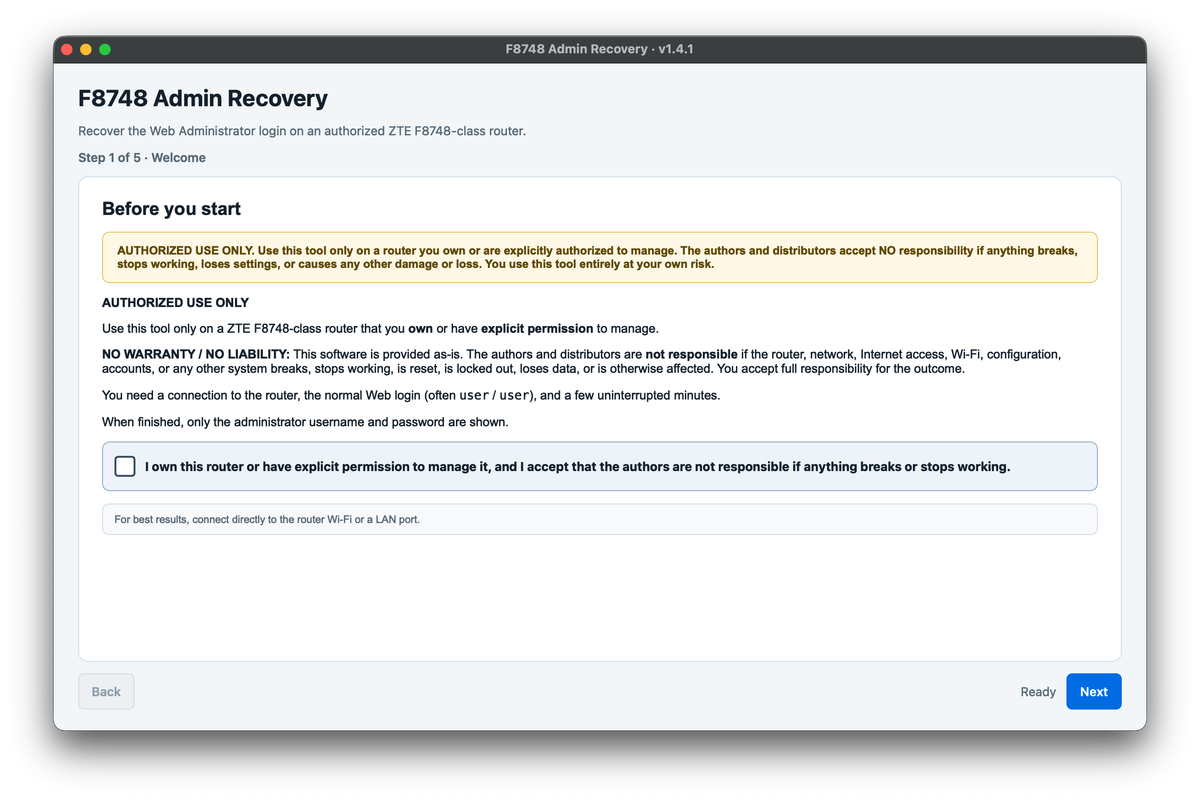
- walks you through short disclaimers and acknowledgments,
- asks for the usual connection details,
- runs the recovery flow quietly (phase progress only — not a tutorial of the method),
- and, if it succeeds, shows only the final Web Admin username and password.
It is built for the common desktop targets: macOS (Apple silicon and Intel), Windows, and Linux. No need to install Python or poke at scripts if you only want the end result.
⚠️⚠️⚠️⚠️⚠️⚠️⚠️⚠️⚠️⚠️
DANGER DANGER!!!!
Trust note: any binary that talks to your router deserves skepticism. Prefer running it on a machine you control, ideally isolated enough that you’re comfortable with the risk, with a working path to the CPE (cable is nicer than flaky Wi‑Fi). Authors are still not liable if you run it and something goes sideways.
How to use it
Before you start
- You own the router or have clear permission to recover admin access on it.
- Your computer is on the same LAN as the CPE (Ethernet preferred).
- You know the normal web login (often the limited
useraccount the ISP left enabled). - You can leave the process alone for several minutes — interrupting mid-run is a good way to fail and have to retry.
- Prefer a stable link. Sleep mode, VPN split tunnels, and jumping between Wi‑Fi networks mid-run are unhelpful.
Install / open
macOS
- Unzip the package for your chip (
darwin-arm64for Apple silicon,darwin-x86_64for Intel). - Prefer the helper script in the zip: Open F8748 Admin Recovery.command (double-click; if Gatekeeper complains, right-click → Open/Run).
- Read the on-screen disclaimer banner and check the acknowledgment on each step.
F8748AdminRecovery-v1.4.3-darwin-x86_64
SHA1: a8118f95fab0775e797da87a2866f449e603fb35
https://drive.proton.me/urls/CVXVD5N4SW#uTTYqoUeTqWN
F8748AdminRecovery-v1.4.3-darwin-arm64
SHA1: 0e66fe31a3271dbadcd723eb639ba88ef8cbdc33
https://drive.proton.me/urls/GNQS9ADBBC#Gay1qhQoPGlc (tested and working)
Windows
- Unzip the Windows package.
- Run F8748AdminRecovery.exe.
- If SmartScreen appears: More info → Run anyway (only if you trust the source of the zip).
- Same disclaimer acknowledgments as above.
F8748AdminRecovery-v1.4.4-windows-x64
SHA1: 8d6de122dc1e87cfbbab1c98e54e87d4caa70509
https://drive.proton.me/urls/SZPVNQMYSM#xlM3kM9EHcFy (tested and working)
Linux
- Unzip the Linux package.
chmod +x F8748AdminRecoveryand run./F8748AdminRecovery.- Same disclaimer flow.
F8748AdminRecovery-v1.4.4-linux-x86_64
SHA1: 55cdd9cbf3b4dd94a65b691bac75d8e8b57b2d39
https://drive.proton.me/urls/GHNZQQ2268#6ZH8ZMCGQi4q (untested)
In the wizard
- Welcome / ownership — read the banner, tick that you own the device or have permission, and that you accept no-warranty / no-liability.
- Connection — router address (commonly
192.168.1.1), web username/password for the limited account, and the identifiers the app asks for (device / client side as shown in the UI). When in doubt, use the app’s detect via router login option rather than guessing. - Confirm — one more acknowledgment that you understand this is authorized use only and may fail or need a retry.
- Run — watch the quiet phase progress. Do not unplug the router or kill the app unless it is clearly stuck for a very long time.
- Result — if recovery works, copy the Web Admin username and password from the final screen.
- Log in to the router’s web UI with those admin credentials and change the password to something only you know.
If it fails
- Confirm you are really on the router’s LAN and the web login still works in a browser.
- Retry once after a calm minute; flaky Wi‑Fi and busy CPE CPUs happen.
- Make sure you used the package build that matches your OS/CPU.
- Do not factory-reset “just to see” unless you accept losing Wi‑Fi names, port forwards, and ISP-side pain.
- If it still fails, your firmware build may differ from V3.0.10P2N4 / HW V3.0.03, or something in the environment is blocking the flow. This post will not turn into remote tech support for every edge case.
What this is not
- Not a guide to attack ISP infrastructure or anyone else’s home.
- Not a promise that every F8748, every ISP image, or every future firmware will behave the same.
- Not a dump of internals, payloads, or a full security advisory write-up.
- Not permission to skip the law or your ISP’s terms where those still apply to unauthorized access — again: your device, your authorization.
Closing
Lost admin passwords on locked-down ISP CPEs are a user-experience failure that security debt makes worse. When vendors and operators leave old maintenance surfaces alive and rarely update field units, legitimate owners end up needing recovery paths that should not have to exist.
If you use the helper: stay on hardware you’re allowed to manage, read the disclaimers, copy only the final credentials and make sure to backup settings before changing anything.
If you build or operate these boxes: ship updates, kill factory backdoors on production images, and give owners a supported way to regain admin access without spelunking.
Buy me a coffee! ☕️
BTC: bc1qx530udccp0puv070tc73lz6da8pxtp6exr4v54